Folks Help Center

Maximize your experience with Folks through our detailed documentation.

Human Resources

Admin

Add initials to a user

It’s important to assign initials to each user, as this allows you to see who made certain changes.
In several modules, you’ll notice a “Modified by” column. This column displays the initials of the last user who made modifications, allowing you to have a more accurate record of changes.

To add or edit initials:

  1. Go to Settings > Users.

  2. Find the user in the list and click the Edit button (paper/pencil icon).

  3. Add the initials in the appropriate field.

  4. Click Save.

Important

The system does not validate whether the initials are already used by another user.
Make sure that each user’s initials are unique to easily identify who performed an action.


Add norms to an employee

The customization of standards for each employee is a key element in aligning individual goals with the company’s requirements. This guide provides a detailed procedure for effectively updating these standards in your management system.


  1. Go to Company > Norms and select the employees tab.

  2. Click on Edit.

  3. Locate your employee in the list.

  4. Locate the column of the norm you wish to configure.

  5. Add the norm related to the employee.

    ✏️ To make a change that will impact everybody, enter your values in the table header All Employees to apply a standard to your entire staff all at once.

  6. Click on Save Data.

  7. A confirmation window will appear, asking if you want to save. If you are satisfied with the changes click on OK.


Add or Edit Holidays

It is possible to create public holidays and link them to each province. This way, the holiday will appear in the absence request, vacation, overtime, timesheet, and calendar modules for each employee—according to the province of residence indicated in their profile.

To set this up in Folks:

  1. Navigate to Company > Norms > Organizational.

  2. Click Edit Public Holidays.

  3. A window will open. Click Add.

  4. Enter the holiday name, date, and the province to which it applies.

  5. You can also edit an existing holiday by updating its information.

  6. Click Save.

💡 Tip: Since some holidays do not fall on the same date every year, make sure to update them at the beginning of each new year.

Assign/Change the supervisor of a department

It is possible to change the supervisor for all employees within a department. This is managed through an automatic rule in your organization’s structure.

Steps to Follow

  1. Go to Company > Organizational Structure > Departments.

  2. Locate the department in the list and click the edit button (pen & paper icon).

  3. A window will appear. Select the supervisor from the Employee Supervisor dropdown menu, or [Site name] Supervisor if multiple sites are configured.

  4. Click Save.

Important

The change will apply to all employees linked to this department.
However, employees whose supervisor has been manually modified in their profile will not be affected by this update.
To learn how to reapply the automated supervisor assignment rule for an employee, refer to the article Default Supervisor Assignment


Bulk User Creation

Do you have several users to create? Follow the instructions below to do it quickly.

First, make sure that each employee profile contains at least one valid email address (personal or corporate). To see all the addresses at once, go to Employees > Employee List and then View Summary. Scroll right until you see the email columns.

  1. Generate users
    Go to Settings > Users and click on + Add (generate users). 
    Note, only the account administrator has the option to add users in bulk.
  2. Select corporate email and choose the role with the lowest access level from the list. This ensures that no additional access is granted by mistake during user creation. Once the creation is complete, you can modify the roles of the users for whom you want to expand access. 
  3. A loading process should occur, and the number of users created will be displayed.

👉Important: as soon as a user is created, they receive an email inviting them to join Folks and choose their password. This email is valid for 7 days only. As long as the employee has not chosen their password, their user account will remain inactive.

⚠️Attention: for users who will have a role with more permissions (for example, manager or supervisor), it is important to add initials to their user account. This helps to know who made changes/adjustments, approvals, etc. 


Create a user

How to - Create a user

1. Access user creation

From the left menu, click on Settings > Users. This page allows you to view and manage all users in your system.

To create a new user, click on + Add at the top right, then select Add a user.

2. Link user to employee profile

Select the employee’s name from the dropdown list. This step is crucial so the user can make requests or view their profile.

Important: Do not skip this step if the user needs access to their personal information.

3. Enter the user's information

In this section, you’ll need to fill out the following fields:

First Name

Last Name

Email – This will serve as the username. The password setup link will also be sent to this address.

Initials – Used to quickly identify who made certain changes on the platform.

4. Assign a role

Choose a security role for the user from the dropdown list. This role determines the user’s permissions and access to different sections of the platform.

Warning: If no role is assigned, you will need to manually configure permissions one by one.

5. Restrict user access

If the user should only have access to their own information, make sure to select "Restrict information to the selected employee". If not, you can give more access by selecting "Visibility of all employees or by structure" and restricting access by working sites and/or departments.

Capture d’écran 2025-11-13 144517-modified.png


6. Save

Once all information has been entered and verified, click Save Data to finalize the user creation.

Note: The user will receive an email with a link to set their password as soon as you click Save Data. The link in the email is valid for 7 days only.

⚠️ It is important not to manually activate the user, as this will prevent them from setting their password.


See more

Roles and permissions ★

Introduction to Permissions in Folks

Permissions 

In the Folks application, access is managed through roles that can be predefined or customized. Managing human resources information is a critical task to ensure the strict protection of employee and company data.


Default roles

The roles available in Folks are:

  • Employee: Limited access to their own information.
  • Manager/Supervisor: Access to information of employees under their supervision.
  • Payroll: Access to certain employee information to track time and other requests.
  • Full Access: Access to all company information.

Learn more about suggested roles.

Special Role

  • Company Administrator: Limited to only one person per company, this role has all administrative rights and can configure the application according to the company’s needs.

Role-Based Access Management

Role-based access management allows restricting the visibility of information based on various criteria such as the employee, structure, or specific module. Here are some examples:

  • An employee is limited to their own information.
  • A manager can see information for the employees they supervise.
  • An employee may have read-only access to certain modules.
  • A payroll manager can see the timesheets of all employees at an working site.

Using roles allows for better overall access management and minimizes individual exceptions. It is also easier to update, adjust, and track access when it is linked to roles.

Assigning a Role and Traceability

It is strongly recommended to assign roles and permissions to individual email addresses (for example j.doe@abc.com) and not to distribution groups or other shared addresses (for example: hr@abc.com). This not only helps limit the chances of a breach but also allows for more precise identification of who has access to what.

If it is necessary to provide an address based on a group, for example hr@abc.com, it is important to manage access to this address rigorously, notably through password management and/or limited-time sharing.

Key Resources

To better understand the implementation and management of permissions in Folks, access the following resources:

How do I create a test user from an existing email?

The username inside Folks is the user's e-mail address. Each e-mail can only be used once. So how do I create test users to validate that my security roles are appropriate?

The answer is simple and accessible to everyone! When creating a test user, add your e-mail address (courriel@company.com) to the e-mail field. However, you need to modify it a little by adding +something just before the @. Ex: e-mail+1234@company.com or e-mail+employe@company.com 

This e-mail will be seen by Folks as an e-mail not used by another user and will enable you to create several users with your own e-mail. This manipulation sends e-mails to an alias of your e-mail address, and you'll receive messages sent by Folks in your real mailbox. You can add anything after the + symbol to identify the user and the e-mails received from the platform. However, each alias can only be used for one user. If you delete a test user, the e-mail alias for that user will be accessible again. 

How to change the Company Administrator

Only the user with the role of Company Administrator can make this change. To change the Company Admin, please follow these steps: 

  1. In the navigation menu, go to: Company > Information
  2. In the field for Contact Name input the name of the new company admin. Click save data.
    👉 It is important that this be done first since once you give the admin to someone else you won't be able to change it. 
  3. Click on Change Admin
  4. Select the username of the new administrator from the list and click on OK.
    The first and last name entered in the user information will be put in brackets in case you do not recognize the username (user's email).
  5. After pressing OK, you will be able to modify the accesses of the former Company Administrator as needed.
Why don't I have access to ... ?

What to Do

If you notice that you don’t have access to a page or lack certain permissions, contact your company administrator.
If you’re unsure who that is, your supervisor or HR contact can help you identify the right person.

Important:
The Folks support team will not modify any access without prior authorization from the company’s administration or an authorized representative.

Your organization retains full control over its own environment.


Why can't my employee make requests?

When a user is unable to access the Requests menu, there are a few causes that could justify the situation, one of them being that the employee profile and users are not linked.

Resolution Steps

  1. Access the user list
    Go to  Settings > Users 

  2. Edit user
    Click the paper/pencil icon for the desired user to enter edit mode.

  3. Select the employee profile
    From the employee dropdown menu, select the employee to link to the user.
    user-modified.png

  4. Save changes

  5. Employee reconnection
    Ask the employee to log out and log back into the platform. 

⚠️ Important: A user should always be linked to their own employee profile and not to someone else’s. An employee should be linked to only one user at a time.


See more

Dashboard and KPIs

Customizing your KPIs display

It is possible to personalize the display of graphs or charts for demographic data or rates and trends.

Customize the Display

  1. Go to Reports > KPI and select the Demographics or Rates and Trends tab.

  2. Regardless of the tab selected, click on the menu icon in the upper right corner of the page.

  3. Check or uncheck the information you wish to display or hide.

  4. By default, all charts are displayed (and therefore selected).

💡 Tip: Your selection will be saved for your future logins. You will not have to customize every time.

Demographics - % Full-Time or Part-Time

What is taken into account for the calculation in the “% full-time” and “% part-time” tables in the reports?

The data used for the % full-time and % part-time results are taken from employee profiles. More specifically, what is entered in the employment type field. Only the types “full-time” and “part-time” choices will be taken into account. All other options available in this field will have no impact on this statistic. 

👉 Please note: KPIs are updated only once, on the first of each month, for the previous month only. If you make retroactive changes after this, the data will not be recalculated and these changes will have no impact on the KPIs already displayed.


KPI - Compare multiple years

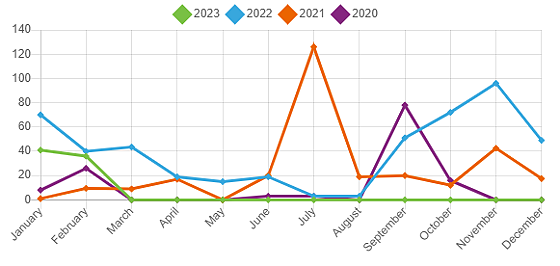
It is possible to view multiple years within the statistics charts. To select the number of years to be displayed in the tables, both in the Demographics and the Rates and Trends section, click on the Number of years displayed drop-down.

If you select more than one year, the rows of the tables will adjust accordingly with different colors.

Screenshot of: If you select more than one year, the rows of the tables will adjust accordingly with different colors.

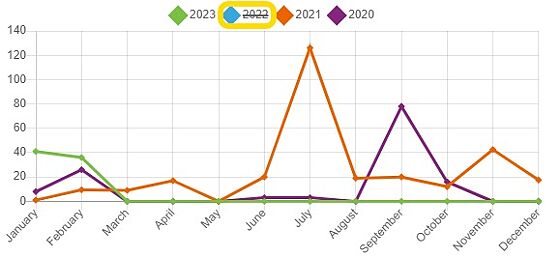
It is possible to hide one or more years. Click on the year(s) to be hidden inside the table and click one more time to display them again.

Screenshot of: It is possible to hide one or more years. Click on the year(s) to be hidden inside the table and click one more time to display them again.


Notification and Reminder Center features (Home page)

The Notification and Reminder Center presents you with a summary of relevant information and task reminders.

A user with access to view information on employees other than himself will have the option of having a Global View (see information on all employees to whom he has access) or a Me View (visibility on my own information only). The view can be changed using this button:

Global View

The first section with the yellow rectangles shows you statistics on the total number of hours used since the beginning of the month in each of the time management modules (Absences, Holidays and Overtime).

The Today section shows you employees on any type of leave, employees starting or ending their employment, and birthdays or anniversaries as of today's date. You can change the date displayed for this information by selecting another date in the Calendar.

The Calendar section uses colored dots to display days with one or more of the items in the Today section, in addition to public holidays. By selecting a day other than today, you affect what is shown in the Today section.

The Ongoing processes section shows you the onboarding or offboarding processes you have the opportunity to view, or for which you have one or more tasks to complete. This section can be clicked to be redirected to the task list and shows you the progress of this process. By default, this section shows the onboarding and integration processes; you must click on Departure to view the departure processes.

The Unapproved requests section shows you all unapproved requests to which you have access. Click on this section to be redirected to the In-Depht Analysis of the module for viewing and approval if required.

The Certificates section presents you with certificates to be renewed in the short term under 3 categories: Expired certificates, To be renewed within 30 days and To be renewed within 31 to 90 days. By default, this section shows expired certificates; to display certificates due for renewal within the next 30 days, click on 30 days, and for those due for renewal within 31 to 90 days, click on 90 days.

The Reminders section shows you reminders for Profile Notes in the Work Accidents and Labor Relations modules. You can view tasks due today, in the next 7 days or in the next 14 days.

Me view

The first section with the yellow rectangles shows you statistics on your available banks in each of the time management modules (Sick, Vacation, Mobile/Personnel and Overtime).

The Today section shows you your day's leave, birthdays and anniversaries. You can change the date displayed for this information by selecting another date in the Calendar.

The Calendar section uses colored dots to display days with one or more of the items in the Today section, in addition to public holidays. By selecting a day other than today, you affect what is shown in the Today section.

The Ongoing processes section shows you the onboarding or offboarding processes in progress, for which you have one or more tasks to complete. This section can be clicked to redirect you to the task list and show you the progress of this process. By default, this section shows onboarding processes; you must click on Departure to view departure processes.

The Unapproved requests section shows you all your unapproved requests. You can click on this section to be redirected to the In-Depht Analysis of the module to view the request.

The Certificates section displays your certificates for short-term renewal under 3 categories: Expired certificates, To renew within 30 days and To renew within 31 to 90 days. By default, this section shows Expired Certificates; to view certificates due for renewal in the next 30 days, click on 30 days, and for those due for renewal in 31 to 90 days, click on 90 days. You can only see these items if you have user rights to access the Certificate Management page.

The Reminders section shows you reminders for Notes to File tasks in the Workers' Compensation and Labor Relations modules. You can view tasks due today, in the next 7 days or in the next 14 days. You can only see these items if you have user rights to view the Detailed Analysis page for these modules.
Rates and Trends - Absences

Go to Reports > KPI > Rates and trends.

Description

This KPI represents  the number of absence hours or days for the current month.

💡Tip: Only absences recorded in the Absences module are included in this statistic.

View

You can view the total for each month by hovering your cursor over the desired month in the chart.


Rates and trends - Absenteeism rates

Go to Reports > KPI > Rates and trends.

Description

The absenteeism rate shows the overall trend of absences per month in your company.

The absenteeism rate is calculated as follows:
(Number of hours absent ÷ Number of hours worked during the period) × 100

This rate represents the percentage of working hours that were spent absent rather than being productive at work.

View

You can view the total for each month by hovering your cursor over the desired month in the chart.


See more

First steps with the mobile application

Folks Mobile App Overview

The Folks mobile application allows your employees to access their personal information, make time off and overtime requests, and be informed of approvals and refusals.

In this article, you'll find an overview of the mobile application's new interface and features.

New interface

In January 2025, we've refreshed our mobile application to bring you a whole new experience! 

IMG_5217.png IMG_5218.png IMG_5219.png IMG_5220.png

  • Home - This page allows you to consult your bank summary and send a request to your manager. As a manager, you can approve or deny your employees' requests.
  • Requests - Send a request for time off or overtime to your manager. Until a request is approved, it can be edited or deleted.
  • Documents - Search and download documents shared by your company to your mobile device.
  • Directory - Get your colleagues' contact details so you can get in touch with them quickly.
  • Profile - Access and edit your profile.

The app will display in English or French, depending on the system language you set in your device.

Features and benefits

Specially developed to make life easier for your employees daily, the mobile application will give them access to the same features as before:

  • Access to personal and corporate information at any time
  • Time off requests
  • Overtime requests
  • Login with Single Sign-On (SSO)

Getting Started with the mobile application

You can download the app from the App Store or the Google Play Store now.

For information on sending and processing requests, please consult the following resources:

Send a Time off/Overtime Request on Mobile

Use the Folks mobile app to send your manager a time off or overtime request when you're on the move.

Time off request

  1. If you haven't already done so, download the Folks application to your mobile device.
  2. Open the application and log in to your account. The app will display in English or French, depending on the system language you set in your device.
  3. Tap the + Make a request button below the summary of your banks. You can also click Requests in the navigation menu at the bottom of the screen to access the request form.
  4. In the request form, under the Time off tab, complete the required information. Required fields are marked with an asterisk.

    FieldDescription
    Type*

    Select the type of time off request. Other fields may appear depending on your selection.

    For example, if you're sending an absence request, you'll need to select the reason and indicate whether it's paid leave and whether you want to impute the sick bank.

    Include weekend daysActivate this toggle if you wish to include weekend days in your leave request.
    Start - End*Enter the date manually or display the calendar.
    Days detailsEnter the details of each day requested if they do not correspond to a full day.
    Other informationEnter a comment if necessary.
  5. If desired, tap the Add a document button to include an attachment.
  6. When you have finished, tap Send request. An email will be sent to your manager to inform them of your request.

Once your request has been processed, you'll receive an email informing you whether it has been accepted or rejected.

Overtime request

  1. Access the request form by tapping the + Make a request button under your bank summary or by tapping Requests in the navigation menu at the bottom of the screen.
  2. In the request form, under the Overtime tab, complete the required information. Required fields are marked with an asterisk.

    FieldDescription
    Type*Select the type of overtime request.
    Date*Enter the date manually or display the calendar.
    Duration*Enter the duration.
    Time value*Select the time value.
    Other informationEnter a comment if necessary.
  3. If desired, tap the Add a document button to include an attachment.
  4. When you have finished, tap Send request. An email will be sent to your manager to inform them of your request.

Once your request has been processed, you'll receive an email informing you whether it has been accepted or rejected.

Edit or Delete a Pending Request on Mobile

You can edit or delete a time off or overtime request that has not yet been approved.

  1. Open the application and log in to your account.
  2. Under the My requests section, find the request to edit or delete. You can use the Time off or Overtime filter to find the request more easily.
  3. Tap the pencil icon to edit or delete the request.
Approve or Reject a Time off/Overtime Request on Mobile

Folks' mobile application makes it easier for managers to process employee requests. Here's how to approve or reject a time off or overtime request.

  1. If you haven't already done so, download the Folks application to your mobile device.
  2. Open the application and log in to your account. The app will display in English or French, depending on the system language you set in your device.
  3. Under the summary of your banks, you can navigate between your requests and those of your employees.
  4. Under the Employee requests section, find the time off or overtime request to be processed. You can use the Time off or Overtime filter to find the request more easily.
  5. Review the details of the request. For a time off request, you'll see the name of the employee, the type of request, the date or period for which the request was sent and whether the request exceeds the available balance (noted in red).
  6. Tap Approve or Reject. The request will disappear, the status will change from Pending to Approved or Rejected, and an email will be sent to the employee informing them of your response.
See more

Employee

"My Team" Filter in the Employee List

A new button labeled “My Team” has been added to the Employees > Employee List page. By default, this filter is active (indicated by a grayed-out button with a check mark). You can uncheck it at any time to view the full employee list. This filter allows you to quickly see the employees under your direct supervision. 

Please note: the system uses the direct supervisor that appears in the corporate tab of the employee's profile.

The filter is only accessible to employees in supervisory roles.. If an employee does not supervise any department or employee, this filter will not appear in their menu.

Screenshot 2025-08-28 at 3.11.40 PM-modified.png

It is also possible to filter employees by displaying only those who have been employed for 3 months or less (Recent employees filter).

Finally, the inactive employees filter allows you to view employees who are no longer active (whether permanently departed or temporarily laid off). Inactive employees will be shown in the list with a light gray filter.

Adding a confidential document to an employee's profile

It is possible to add documents to an employee's profile and restrict its access. There are two ways to go about it: by attaching a file through file notes or by adding an attachment directly in the employee's profile (under documents).  

File Notes

You can add notes in an employee's profile (file notes tab). For each note you can attach a file. This tab is never available to the employee himself. There are no access to give or remove. It is hidden by default. This eliminates the risk of giving the employee access to their files by accident. 


Limit the access to files by going through the employee's profile 

When adding files to the employee's profile (documents tab), you have the option to make the file available to the employee of not. If you do not wish for the employee to view the files, simply make sure that the shared to employee toggle is off. For more information about document management for employees click here

Only individuals who have been granted access to view files in another employee's profile will be able to access them. This permission is given in the user management page. 


Birthday and work anniversary

Location

Anniversaries are visible on the home page under the Anniversaries widget.
This widget displays both birthdays and work anniversaries.

Widget Functionality

The Calendar widget shows a colored dot to indicate upcoming anniversaries.
Only the day and month are displayed.

To see the type of anniversary (birthday or work anniversary), click on the relevant day in the calendar to expand the Anniversaries widget.


Bulk Salary Modification

How do I change the salary of multiple employees at the same time?

  1. Creating the file for export
    • Go to Employees > Employee List and click on view summary to see the employee information.
    • Use the export button to select the necessary data: names, employee numbers, salary.

      Note: All changes will be made for the same date for all affected employees. You can choose a retroactive date or the current date.

  2. Modifying the exported file
    • Open and adjust the Excel file for better viewing.

      Note: It is important to delete the rows of employees with no salary changes and to ensure the uniqueness of employee numbers to avoid confusion during import.

  3. Saving and preparing for import
    • Save the file in CSV format with a semicolon as the separator.

      Note: Make sure you check the file format to avoid errors when importing into Folks.

  4. Importing the data into Folks
    • Go back to Folks and click on Settings > Import/Export
    • Upload the CSV file and click on import.
    • Correctly match the columns.

      Note: Indicating the date of the salary modification is essential. You can also add explanatory notes if necessary.

  5. Final verification
    • Proceed with the import and wait for the process to finish.

      Note: It is important to review the import log to spot and correct errors, and redo the import after corrections if necessary. Make sure the update was done properly by checking a few employee profiles.

Change the supervisor of an employee

To change an employee’s supervisor

  1. Go to Employees > Employee List.

  2. Select the employee you wish to modify.

  3. Under the Corporate tab, click the pencil icon in the Employment Information section to access the edit mode.

  4. Choose the supervisor to assign from the drop-down menu. Don’t forget to save before exiting.

WARNING:
Once a supervisor is manually assigned, it will no longer be updated automatically based on the department or working site the employee belongs to. From the moment this change is made, any supervisor changes made within the department will not affect the modified employee.

TIPS AND TRICKS:


Create a Job Title

1. Go to the Edit positions tab via Company > Organizational Structure

2. Click on + Add at the top right of the page.

3. Enter the job title name (required) and any other necessary fields.

👉 TIPS AND TRICKS: It is possible to have bilingual structures if needed. This allows you to enter the French & English name for the same job title. 

If you are the administrator of your system, go to Company > Information and enable the BILINGUAL ORGANIZATIONAL STRUCTURES option to access this feature.

4. Save. From this point on, you should see this job position as an option.

See more

Organizational chart

Introduction to the organizational chart

The organizational chart lets you view the structural hierarchy for your enterprise.

Organizational chart viewer

Select an employee to display their organizational chart. You can then save this organizational chart so it appears in the saved charts. 

To display the complete org chart, simply select the highest ranked employee.

Configuration of organizational structures

The configuration of the organizational structure, most importantly identifying the supervisors for each department, is needed to use the organizational chart.

When you assign a supervisor for a department, they will automatically appear as the supervisor for all employees of this department. 

To see who is the supervisor of a department chief is, go to their profile. 

Display employee photos in the organization chart

Steps to Follow

  1. Go to Company > Organizational Structure > Organizational Chart.

  2. Click the Employees dropdown menu and select the employee who supervises a team.

  3. Check the box Show photos.

  4. Click Display to show the organizational chart.

Note

If you see an avatar instead of a photo for one or more employees, it means that no photo has been added to their profile.
For more information, refer to the article Manage Profile Picture.


Why is the organizational chart not displayed?

When you load the organizational chart page, and the Folks logo keeps loading, you probably have a supervision loop/discrepancy.

When a supervision loop is present, the requested flowchart will not be displayed.


Schema-knowledge-base-EN.png


TIPS:

A self-supervising employee will be no exception to this rule. This will create a supervision loop.


1. To find the supervision loop, validate the list of employees and their supervisors under Employees > Employee List.

2. Once you find out which employee(s) are problematic, change the supervisor(s) in question.


TIPS:

If you want more information on the modification of a supervisor, refer to the article Change the supervisor of an employee.


Hide or unhide an employee from the organization chart

Steps to Follow

  1. Go to Employees > Employee List.

  2. Click the Name of the employee to access their profile.

  3. Once in their profile, click on the gear icon ⚙️ at the top right corner to access configurations.

  4. Under the parameters tab, check or uncheck the option for Hide employee in org chart.

    org.chart-modified.png

  5. Click Save.


Rename a saved organizational chart

Steps to Follow

  1. Go to Company > Organizational Structure > Organizational Chart.

  2. Click the Saved Organizational Charts dropdown menu and select the chart you want to rename.

  3. Click Save this organizational chart.

  4. A window will appear allowing you to edit the chart name.

  5. Click Save.


Save or delete an organizational chart

You can save the search of an organizational chart to access it easily next time. 

Steps to follow

  1. Go to Company > Organizational Structure > Organizational Chart.

  2. Click the Employees dropdown menu.

  3. Select the employee you wish to see then click Show to display the organizational chart for this employee. 

  4. Click on Save this chart.

  5. Choose a name for this chart.

  6. Click on Save.

  7. You can see previously saved organizational charts by clicking on the drop down called Saved charts.

👉Important

If you are trying to view the organizational chart of an inactive employee, the display will appear as broken.
You can delete this organizational chart and generate a new one with their replacement if applicable.

Deleting a previously saved organizational chart

  1. Still in the same menu (Company > Organizational Structure > Organizational Chart) select the previously saved organizational chart you wish to delete by clicking on the drop down called Saved charts.

  2. Click Delete this chart.


See more

Expense account

Introduction to Expense Account Configuration

Folks offers two types of expense account configuration, each with its advantages.

Configuration types

Type Configuration with restriction Configuration without restriction
Benefits
  • Greater control: ability to define restrictions on types of expenses and amounts authorized.
  • Lump-sum options: ability to define lump-sum amounts for certain expenses (e.g. $45 for cell phone).
  • Flexibility: several receipts can be added at once.
  • Group sending: employees can accumulate expenses over a given period (e.g. a month) and send all requests at once.
How it works
  • Expenses can be limited to specific categories (meals, travel, other).
  • Employees must provide receipts to justify expenses.
  • No restrictions on expense types.
  • A “Project” field can be activated to categorize expenses (customer, specific project, personal expenses, etc.).
  • Per diem can be set for meals and mileage.

Creating a configuration

As an administrator, you can create a configuration for expense account requests as follows.

It is possible to create multiple configurations, but only one per employee will be applied, i.e. there is no selection option when making a request. For example, if you create one configuration that applies to everyone and another that applies specifically to one employee, the employee will only see the one that applies specifically to them.
  1. In Folks, navigate the expenses customization page Employees > Expenses accounts and click on the gear icon ⚙️to access configuration. 
  2. In the configuration form, give your configuration a name, then select the desired expense account type.
    • If you are creating a configuration With restriction, expenses can be limited to certain categories only. Employees must attach a proof like a receipt.
    • If you are creating a configuration Without restriction, define the per diem amounts for meals and mileage. We recommend that you use the Show project field option to allow employees to indicate whether certain expenses should be applied to specific project budgets.
  3. Under the Employees selection section, select the structures or employee to which the configuration is to be applied. By default, the Apply to an organizational structure option is selected, and the configuration is applied to all working sites and departments. To target a specific employee, select the Apply to an employee option. When a configuration is created for an employee, it is automatically assigned the employee's name.
  4. Under the Approvers section, select the person(s) who will approve expense accounts. Requests are sent to the first approver, then to the second approver (if configured).
    • Approver 1 (mandatory) - You can select the desired person or keep the (employee) Supervisor option. Note that when no supervisor is assigned to the employee, the expense request will be automatically approved without validation.
    • Approver 2 (optional) - Accountant or other responsible person
  5. When you have finished, click Save.

Employees can submit expense accounts by clicking on the requests icon in the Folks header (see Send an Expense Account Request). Approver(s) will receive email notifications of requests awaiting approval.

As an administrator, you can view all requests, process a pending request on behalf of another person, and delete any expense account request.

To delete an expense account configuration see this article.

Expense account - Show project field - Explanation

The Show Project Field option allows you to add an alphanumeric field in the expense form. This field lets employees indicate the name of the project associated with the expense, for reference purposes only.

How to Enable It?

  1. Go to Employees > Expenses Accounts.

  2. Click the gear icon ⚙️ in the top right corner.

  3. In the expense account settings, check the box Show Project Field.

How the project field will be shown to employees:


👉 Note: The Project field in expense accounts is completely independent from the projects in the timesheet module. It is for reference purposes only and does not affect project tracking in timesheets.


.


Delete an expense customization

1. Go to  Employees > Expense accounts. Click on the gear icon ⚙️ to access configuration. 

2. Click on the drop-down for Saved configurations. Select the one you'd like to delete.

3. Click on Delete.

💡Tip: Requests previously made with the deleted configuration will not be deleted from the platform. You will be able to find them by accessing the detailed analysis of the employees' expense accounts through Employee > Expense accounts section.

⚠️WARNING : If a structure or employee configuration is deleted, the affected individuals will lose access to apply for an expense account or will be covered by another existing and more general configuration.


Send an Expense Account Request

You can send an expense account request as follows.

If you don't see the option, it means that no configuration applies to you.

  1. In the header, click on the + Make a request button and select Expense account.
  2. On the request page, complete the necessary information according to your company's configuration.
  3. If you wish, you can attach files to your request.
  4. When you have finished, click on Send request to send it now, or on Save without sending to save the request as a draft.

It will be possible to edit or delete your request if it is in draft form or if it has not yet been approved in Employees > Expense Accounts. It will also be possible to edit a request that has been rejected to correct the details.

Once submitted, your request will automatically generate an e-mail to notify the approver(s) of your request. Once your request has been processed, you'll receive an e-mail to let you know whether it has been accepted or rejected.

Approve or Reject an Expense Account Request

This article is aimed at expense account approvers who wish to learn how to process requests received in the expense account module.

Processing and editing a request

When employees send you expense accounts, you can see them in the Pending requests section of the home page. Clicking on a pending expense account request takes you to the expense account module (Employees > Expense accounts).

We suggest you view the request before approving it, to verify the information. To do so, click on the eye icon. Under the Approval column, you can click on the check mark to approve the request, or on the x to reject it. Under these options, Next indicates the person who must approve the request.

To edit the request, click on the edit icon (pen/paper). In the request details at the bottom of the page, you can save your changes.

Wether or not the request is approved, an email will be sent to the employee to inform them of your response.

Deleting a request

When a request is awaiting your approval, you can click on the trash icon to delete it. Once approved, you can only view the employee's request. You can also delete a rejected request.

Download attachments from an employee's expenses account

1. Go to the Employees > Expenses accounts section.

2. Click on the eye icon to access the detailed request.

3. Click on the paperclip icon to download an invoice attachment(s) or general expense account attachments.

4. A window will appear. Locate the desired attachment and click on the label of the attachment to download it and view it.

💡TIPS :

To download all the attachments at once, click on Download everything.


See more

Human ressources management

Add a discipline to an employee

Follow the steps below to add a discipline to an employee:

Adding a Discipline

There are two ways to add a discipline to an employee:

  • Through the employee's profile directly under the discipline tab then + Add
  • Through the Employees > Disciplines module and + Add (best if you have several disciplines to add)

When you click on + Add, simply fill in the required fields and save. You can also add attachments.


Editing or deleting a discipline

When you go through Employees > Disciplines, you can view the disciplines added according to a chosen date. Click on the pencil icon to edit the entry or delete it. You can also click on the paperclip icon to view attachments (if any). 


View the summary

Click on Employees > Disciplines > View Summaries to access the summary of disciplines for the entire company. You will see all employees with visual alerts (green, yellow, red) according to the standards configured beforehand. You can also configure a different standard for each month. To do this, go through Company > Norms.


Add notes to a work accident file

1. Go to the Health and Safety > Work accidents section.

2. Locate the work accident entry, click on Update under the Profile notes column.

3. A window will open. To add a note, enter the date and your notes in the empty fields at the bottom of the window. If needed you can also add attachments.

4. Click on Add to save changes.


Create a work accident entry

To create a work accident entry: 

  1. Go to the Health & Safety > Work accidents section and click on the + Add button.

  2. Select the employee from the drop-down and complete the fields related to the accident.

  3. In order to add the missed days to the accident, uncheck No absence days to add a start and end date of absence and thus see the calendar of the missed days. In the event of a partial return or temporary assignment, it is important to edit the days missed to remove the days worked. 
    No absence entry will be made when saving, as this is informational only. For information on how to create an absence request, refer to the article Create an absence entry for an employee.

  4. If the file is consolidated, you must select Consolidated file and add a consolidation date.
    ⚠️Warning: a consolidated file cannot be edited. You can easily re-open it by clicking on the file icon in the file status column of the work accidents analysis page.

  5. Click on Save

💡TIPS AND TRICKS

You can leave some fields untouched depending on the information you have on hands. You will be able to add the other information as you go. 

The severity of the accident will not be considered in your KPI statistics. Each of the accident entries will be equal to the value of 1 per accident.


Delete a work accident entry

To delete a work accident entry:

  1. Go to the Health and Safety > Work Accidents  section

  2. Locate the request to delete

  3. Swipe right until you see the paper/pencil icon to access editing

    Capture d’écran 2026-04-13 120018-modified.png
  4. On the editing page, click on delete at the bottom left

  5. Confirm the deletion


How to manage reminders, certifications and training

Managing reminders, certifications and training 


1. Why am I not getting reminders for trainings? 

Reminders are exclusively linked to certificates that have a renewal date. Training sessions themselves do not trigger automatic reminders. To receive reminders, you must first create a certificate and then associate the training with that certificate. This ensures that reminders are generated based on the certificate’s renewal date.


2. How enable automatic certificate renewals? 

To enable automatic certificate renewals, follow these steps:

  1. Create the certificate: Start by creating a certificate and filling in all the required information, including the issue date and the planned renewal date.

  2. Associate training: Create the training and make sure to select the corresponding certificate from the list of available options.

  3. Complete the training details: Enter additional information such as the trainer’s name and the date on which the training will take place.

  4. Assign to employees: Finally, assign the training to the employees. The system will automatically renew the certificates according to the scheduled date.


3. What happens if I create the training only within the certificate? 

Creating a training directly within the certificate without using the separate training creation process may result in missing crucial information, such as the trainer’s name and the training date. To avoid these omissions, it is recommended to first create the certificate with all the required information and then associate the training with it. This approach ensures detailed and well-organized management of training and certifications.


4. What is the recommended methos to manage certificates and training? 

The best practice is to: create certificates, associate training, complete the details, and assign them to employees.

Where the notes in the accident file are displayed

After adding a note to a work accident, a reminder will appear on your home page 2 weeks before the date indicated in the note on file. The reminder will disappear the day after the date indicated in the accident file note.

You can also see the notes by going to Health & Safety > Work Accidents and clicking on Update under the Profile Notes column.

For more information on how to enter a work accident, please refer to the article Create a work accident entry.


See more

Onboarding and Offboarding

Introduction to onboarding and offboarding processes

Folks allows you to define and assign task lists and steps to complete, as well as collect personal information for the onboarding & integration process of your employees. This ensures that tasks and activities are completed according to the scheduled timeline.

Illu-AI-FR-1.png

Arrivals and Departures

Before triggering onboarding or offboarding processes, it is important to configure them in the Arrivals and Departures module.

Onboarding & Integration

Offboarding

Onboarding & integration

Once the configuration of an arrival process is complete, you can trigger it by going to an employee’s profile and clicking on the Onboarding tab.

Offboarding Management

Once the configuration of an offboarding process is complete, you can trigger it by going to Onboarding/offboarding > Offboarding and clicking on + Add.


Complete steps for configuring offboarding processes

Before triggering an offboarding process, it is important to configure the data within each process.

1- Create Tasks

The first step is to create offboarding tasks by going to Onboarding/Offboarding > Offboarding and clicking on the gear icon ⚙️ to access edit mode. 

For more information on how to create offboarding tasks, please refer to the article Creating an offboarding task.

2- Creating templates

Once the tasks have been created, the second step is to configure offboarding templates by clicking on the Templates tab. You must link the tasks & templates together. For more information on how to proceed, please refer to the article Creating Offboarding templates.

3- Linking templates to job titles

The final step is to link the created templates to each of the job titles present in the system by accessing the third tab: Job Title / Template. For more information, please refer to the article Link offboarding templates to job titles.

Trigger an offboarding process

Once the configurations are complete, ypu should be able to launch offboarding processes. For more information on this, please refer to the article Launch an offboarding process.


Create an onboarding task

How to create an onboarding task.

  1. Go to Onboarding/Offboarding > Onboarding and click on the gear icon ⚙️ to access configuration. 

  2. In the Task tab, select the Onboarding type and click the green Add button at the bottom of the page.

  3. Click on Add.

  4. Enter the name of the task. Choose the delay from the date of hire, which is when this task should be automatically launched in an onboarding process. 
    For more information on the types of delays, please refer to the article Onboarding - Definition of Delay.

6. Click on Save Data.

👉 As you create tasks, the Save button may no longer be visible, make sure to scroll to the bottom of the page in order to click on Save.

For more information on how to use tasks when creating onboarding templates, refer to the article Create Onboarding Templates.


Onboarding - Definition of "Delay"

The Delay field allows you to indicate when a task should be launched in an onboarding process. The delay is calculated from the employee's hiring date in order to manage notifications and dates when tasks are due.

Where to find it?

This field is available through the Onboarding/Offboarding> Onboarding section.

Click on the gear icon ⚙️ to access configuration mode.

Under the tasks management tab, assign a delay for each task.

Configure task launching

  • To launch a task before the hiring date of an employee, select launch day

  • To launch a task after the hiring date of an employee, you can set the delay choosing from:

    - A number of days ;

    - A number of weeks ;

    - A number of months.

Tips 

In all cases, three reminder emails could be sent to the task owners :

  1. At the time of the launch (for tasks to be done on the day of the launch, this is the only email sent) ;
  2. Seven days before the due date of the task ;
  3. The day the task is due.

The manager can see the tasks to be completed :

  • from the home page, in the process in progress section ;

  • through the employee profile, under the onboarding tab.

⚠️WARNING : No reminders are sent for overdue tasks. It is your responsibility to follow up.


Create a task for an offboarding process

How to create an offboarding task.

  1. Go to Onboarding/Offboarding > Offboarding and click on the gear icon ⚙️ to access configuration. 

  2. In the Task tab, select the Offboarding type and click the green Add button at the bottom of the page.

  3. Enter the name of the task.

  4. Click on Save Data.

👉 As you create tasks, the Save button may no longer be visible, make sure to scroll to the bottom of the page in order to click on Save.

For more information on how to use tasks when creating onboarding templates, refer to the article Create offboarding templates.


Delete a task in an onboarding template

Steps to Follow

  1. Go to Onboarding/Offboarding > Onboarding.

  2. Click the gear icon ⚙️ in the top right corner and click on the Templates tab.

  3. In the type dropdown select Onboarding.

  4. Choose the template to be modified: the list of tasks will appear.

  5. Delete the desired task by clicking the red X at the right end of the row.

  6. Click on Save Data.

👉Important:
The task will not automatically be deleted from an onboarding process that is already in progress.
It will only be deleted for new onboarding processes that have not yet been triggered.


See more

Documents resources

User guide for the documents resources module

The documents resources module in Folks allows you to upload documents that need to be accessible to all employees, such as the employee handbook, group insurance documents, company policies, social club events, and more. This guide details the steps to configure and use the module, both for administrators and employees. 

Administrator Access

Add a document

  1. Go to Documents > Documents Resources
  2. Click on the gear icon at the top right to access configuration mode
  3. Click on + Add at the top right
  4. Add a description and a category. The category can be created or selected from the dropdown menu.
  5. Decide whether this documentation should be visible or not
  6. Add attachments
  7. Click save

Manage documents

  1. Go to Documents > Documents Resources
  2. Click on the gear icon at the top right to access configuration mode

    All documents in the module are on this page. You can filter by category from the dropdown menu at the top left. You can also search by document name.

Under the action column, three options are available:

  • Hide: allows you to make this document invisible to the entire organization
  • Edit: allows you to modify the description, category, add or remove attachments. This also allows you to completely delete the document. 
  • Download: allows you to download the document in your browser

Employee Access

Documents are accessible to employees by going to Documents > Documents Resources. It is possible to view or download the documents. No edit or deletion actions are available. 

⚠️Please note that URLs are not supported through the mobile application Documents section.

Delete an attachment in document resources

Follow the next steps to delete a document from the documents resources module:

  1. Go to Documents > Documents Resources
  2. Click on the gear icon at the top right to access configuration mode
  3. Locate the document in the list and click on Edit (pencil-paper icon)
  4. In the menu that opens, click on delete
  5. Confirm the deletion of the document

⚠️Important: this action is irreversible. Once deleted, the document will not be recoverable.

👉 Tip: if you want to hide the document and not delete it completely, click instead on the eye icon at step 3. This will make the document invisible to the entire organization. 


Downloading a file from the documents resources

How to download a file from the documents resources module?

To download a file, follow these simple steps:

  1. Go to Documents > Documents Resources
  2. Check the box next to the files you want to download. You can select one or multiple files as needed.
  3. Once the files are selected, click on download. They will be downloaded directly in your browser.

💡Tip: if you only have one document to download at a time, simply click on the download icon next to the document's name. 


Change a category's name

How to rename a category in the document resources module?

To edit the name of a category, follow these simple steps:

  1. Go to Documents > Documents Resources
  2. Click on the gear icon at the top right to access configuration mode
  3. From the category dropdown at the top left, click on the three vertical dots ⋮ next to the category to edit.
  4. Click edit and make the necessary changes.
  5. Press the Enter key on your keyboard to confirm the changes.

💡Tip: this option to edit the category title is also available when you add a new document or when you edit an existing document.


Add a new version of a document in documents resources

To add a new version of a document, follow these steps:

  1. Go to Documents > Documents Resources
  2. Click on the gear icon at the top right to access configuration mode
  3. Find the document to change and click on the eye icon to hide the old version of the document. This allows you to keep a history of old documents without deleting them.
  4. Click on + Add at the top right of the page to include the new version of your document.
  5. Enter the details of your new version and click save

Once the new version of the document is added, it will appear in the list, ready to be viewed by employees.

Modifying an existing document in documents resources

To edit a document already added in the documents resources, follow these steps:

  1. Go to Documents > Documents Resources
  2. Click on the gear icon at the top right to access the configuration of this module
  3. Find the document to modify and click on edit

What modifications are possible for a document?

You can make the following changes to your document:

  • Modify the description
  • Change the category: select a new category for the document using the appropriate dropdown menu.
  • Enable or disable visibility: Choose to show or hide the document for employees by enabling or disabling the show option.
  • Delete an attachment: If necessary, delete an attachment by clicking on the trash icon next to it.
  • Add a new file: Upload a new file to replace the old one in the attachments section. You can also drag and drop the file directly into the designated box.


See more

Electronic signature

Introduction to Electronic Signature steps

This article explains how to send a document for signature. Follow the steps below to ensure the correct configuration and efficient electronic signatures are managed.

Please note that electronic signatures are a feature of the Performance plan.

Accessing the electronic signature module

Once the module has been activated by our team, it can be accessed from the main menu through Documents > Electronic signature.

Send a document for signature

Designate signers, send documents for signature to your employees, and track their status in just a few clicks on the document monitoring page.

👉 Make sure your employees' email addresses have been validated in their profiles so that they can receive signature requests. To do this, go to Employee > Summary or to the desired employee profile. We recommend that you notify the employees that they will receive an email from Folks inviting them to validate their email.

  1. Go to the Document Monitoring page (Documents > Electronic signature).
  2. Click Send a document in the top right-hand corner.
  3. Select a signature template or upload a document.
  4. Select the employee(s) and assign a role to each. ⚠️Only employees with a valid email address in the system can receive documents for signature. If you need to validate an e-mail address please read the following article: Validating one or all employee's e-mail addresses.
  5. Select the email address to which to send the request (corporate or personal). 
  6. Click on Next step. Depending on the type of document (see article on single sign vs mass mailing), this step might not be present.
  7. Click on Send for signature.

The signer(s) will automatically receive an email informing them that a document is awaiting their signature. They will be able to access and consult it in just a few clicks, and will be redirected to our partner HelloSign for a fast, secure electronic signature process.

Once all signers have signed the document, the status will change to Signed. You can then download the signed document.


Cancelling the sending of a document

How to cancel the sending of a document?

  1. When you are on the tracking page for documents sent for signature, click on the ellipsis ⋮ to the right of the document and click Cancel.

  2. A pop up will open asking you to confirm. Click Cancel signature request.

Capture d’écran 2025-11-17 151321-modified.png


⚠️The signer(s) will not be notified that the document to be signed has been canceled. If the email has already reached their inbox, it will remain there. However, when they try to open the link, they will see that it is no longer available.

Create an eSignature Document Template

The e-sign module offers two options for how to send a document for signature:

Prerequisite

Templates can only be created if the electronic signature permission has been added to the role or to the user.

Step-by-Step Template Creation

  1. Access the template creation option via the following path:
    • Document > E-Sign > Template Management > Create Template
  2. Click on "Create Template"
  3. Name the template with a unique descriptive title
    • Ensure that the title of the template is clear and distinct to facilitate its identification later.
  4. Upload one or more files to be signed
    • Upload the necessary documents into the template. Note that after saving, you will not be able to add or delete documents in this template.
  5. Add signer roles
    • Define the titles of the individuals who need to sign the document in the template. You can also set the signing order if the Set Signing Order option is checked. Otherwise, the document will be sent to all signers simultaneously.
  6. Add fields for each signer
    • Include the necessary information for each signer, such as name, title, date, signature, etc.
  7. Verify the signers and add a CC recipient if needed
    • Confirm the signers' information, validate the title, include a message explaining the subject or purpose of the document, and add CC recipients if needed to keep them informed of the process steps without being signers.
Deleting one or more documents

How to delete one or more documents?

Deleting one document at a time

Go to the e-signatures page via Documents > Electronic Signature. Locate the document you wish to delete:

  1. Click on the three vertical dots ⋮ to access the available actions.

  2. Click Delete.

⚠️ Attention: Only a signed document can be downloaded. Documents with the status Sent or In Progress (for multi-signature documents) cannot be downloaded.


Deleting Multiple Documents at Once

It is possible to delete several documents at once by checking the box to the left of the document's title. Select the documents you want to delete, then click the trash can icon Capture d’écran 2025-11-17 142228.png. A window will open in which you must confirm the deletion of the documents. The documents will then be removed from the list.


⚠️ Warning: In both cases, deleting a document is irreversible.

👉 It is not possible to delete a document with the Sent status. To delete a document that's already been sent, you must first cancel the sending and then repeat the steps above. For more information on how to cancel a document that has already been sent, consult Cancelling the sending of a document

Document statuses in the e-signature module

To better understand which stage your electronic signature document is at, it’s important to know the different possible statuses. Keep reading to learn about each one.


Sent

The request has been sent, but no signatures have been collected yet.
👉 If signatures are still missing 3 and 7 days after the document was sent, a reminder will be sent to the same email address.


In Progress

At least one signature has been collected, but not all required signatures have been completed. The document can be downloaded once all signatories have signed. If a document has the status Sent or In Progress, it can be resent to people who have not yet signed by clicking Resend. Up until this stage, the request can also be canceled.


Signed

All required signatures have been collected and the document is now complete. If the document has this status, you can download or delete it by clicking on the ellipsis ⋮.
If it is a single-signature document, you will also see the option Add to the signer's profile. This option does not appear for mass mailing documents, as they are automatically added to the employee’s profile upon signature.

Once signed, you can also delete the document.

⚠️ Please note that deleting the document cannot be undone.


Declined

One or more signatories have declined to sign the document. An email will be sent to both the signer and the sender when the document is declined. To resend a document with the Declined status, you must create a new one and start over.


Cancelled

The document request has been canceled by a user. The signer(s) will not be notified of the cancellation. If they try to open the link, they will see that it is no longer available.


Error

An error occurred, preventing the request from being processed correctly.

Downloading one or more documents

How to download documents once signed?

Downloading one document at a time

Go to the e-signatures page via Documents > Electronic Signature. Locate the document you wish to download:

  1. Click on the three vertical dots ⋮ to access the available actions.

  2. Click Download.

⚠️ Attention: Only a signed document can be downloaded. Documents with the status Sent or In Progress (for multi-signature documents) cannot be downloaded.


Downloading Multiple Documents at Once

It is possible to export several documents at the same time by checking the box to the left of the document title. Only documents with the Signed status can be selected. Once all desired documents are selected, export them using the Download button  

See more

Can't find What You're Looking For?

Start a conversation with our team and get the answers you need.

background